Tenant Admin
The eForms on Tablet feature allows users to configure the eForms on tablet configurations for tenants.
This section contains the following sub-sections where users must configure the logo, background image, and carousel image that must appear on the eForms renderer on the tablet:
-
Host Page
-
Landing Page
Configure eForms on Tablet for Tenant
Click Tenant Admin from the left navigation menu. The eForms on Tablet tab ➜ Host Page appears by default.
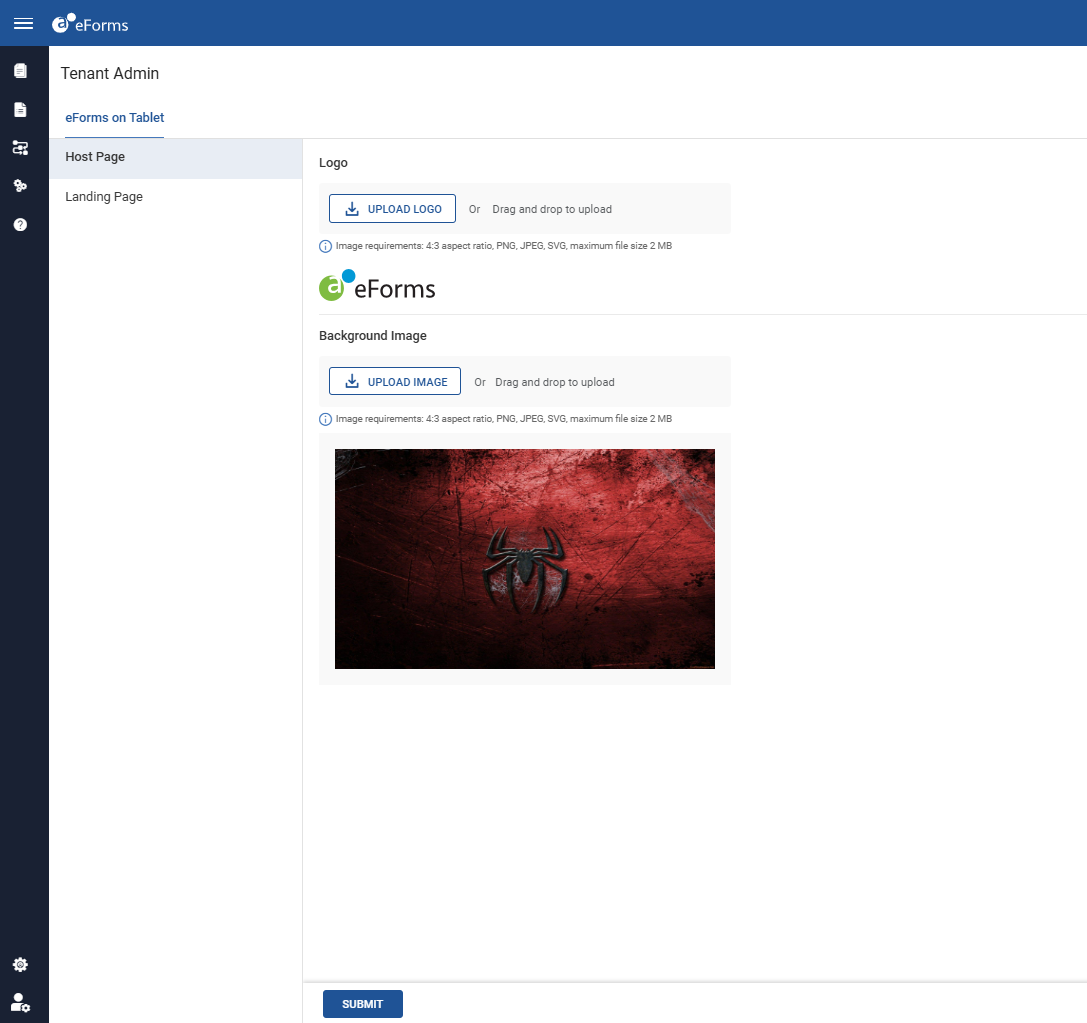
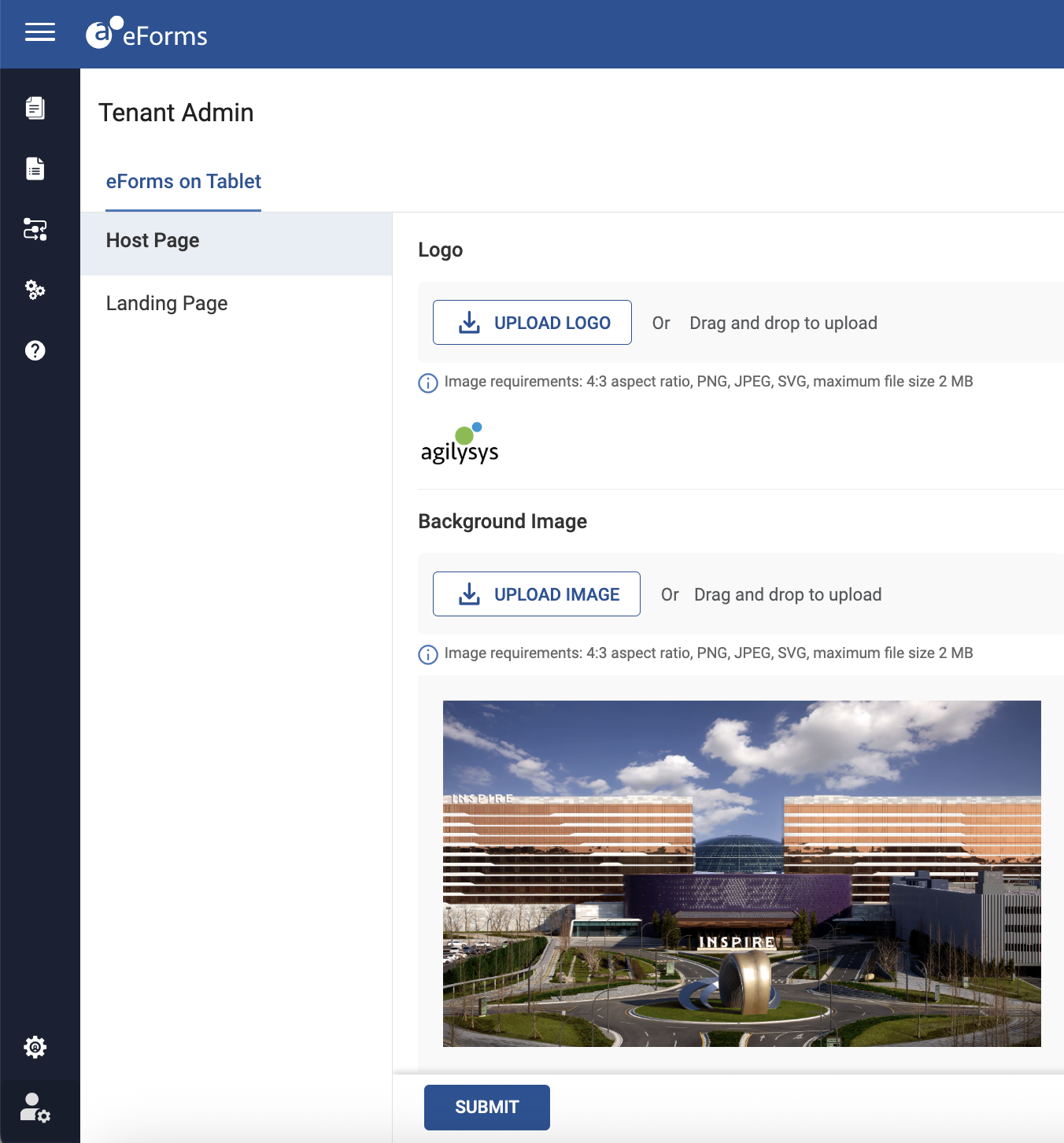
Click Upload Logo or drag and drop under Logo to upload the tenant logo. The supported image formats are PNG, JPG, and SVG. The maximum file size allowed is 2 MB and the aspect ratio must be 4:3.
Click Upload Image or drag and drop under Background Image to upload a background image for the property. The supported image formats are PNG, JPG, and SVG. The maximum file size allowed is 2 MB and the aspect ratio must be 4:3.
Click Submit.
Click the Landing Page section on the left navigation menu.
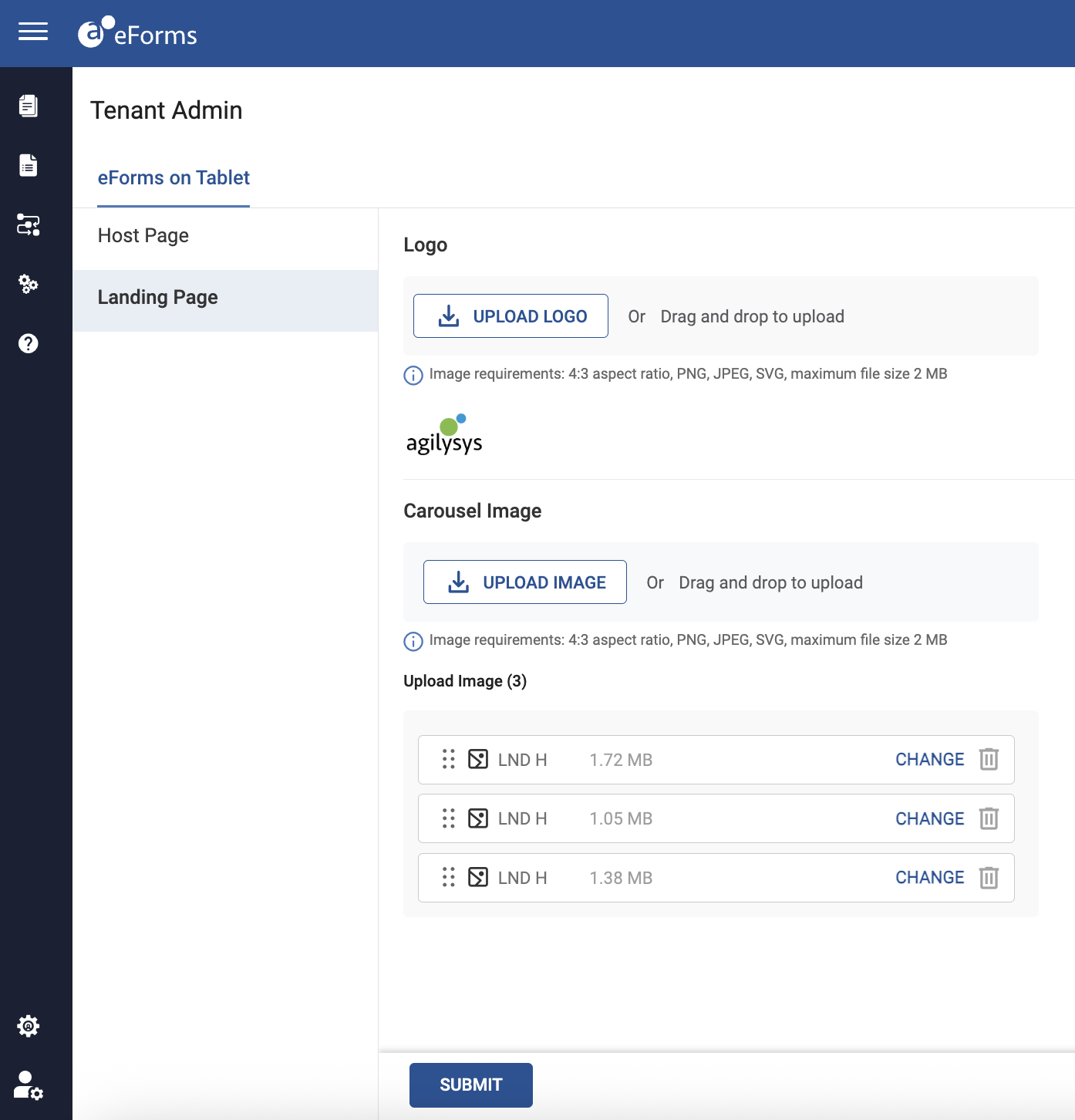
Click Upload Logo or drag and drop under Logo to upload the tenant logo that must appear on the eForm renderer landing page. The supported image formats are PNG, JPG, and SVG. The maximum file size allowed is 2 MB and the aspect ratio must be 4:3.
Click Upload Image or drag and drop under Carousel Image to upload multiple images on the eForm renderer landing page. The supported image formats are PNG, JPG, and SVG. The maximum file size allowed is 2 MB and the aspect ratio must be 4:3.
Click Submit.
If any updates are made to the Host or Host Configuration pages, the cache on the eForm renderer must be cleared, or users must log out and log back in to ensure that the latest configuration changes are properly loaded and applied.